Step by step
- 1
Open the file
Choose FileOpen… and pick a CityGML 1.0, 2.0 or 3.0 file or a CityJSON file, or drag it onto the window. The textures next to the file come along.
Open a model file in the user guide
- 2
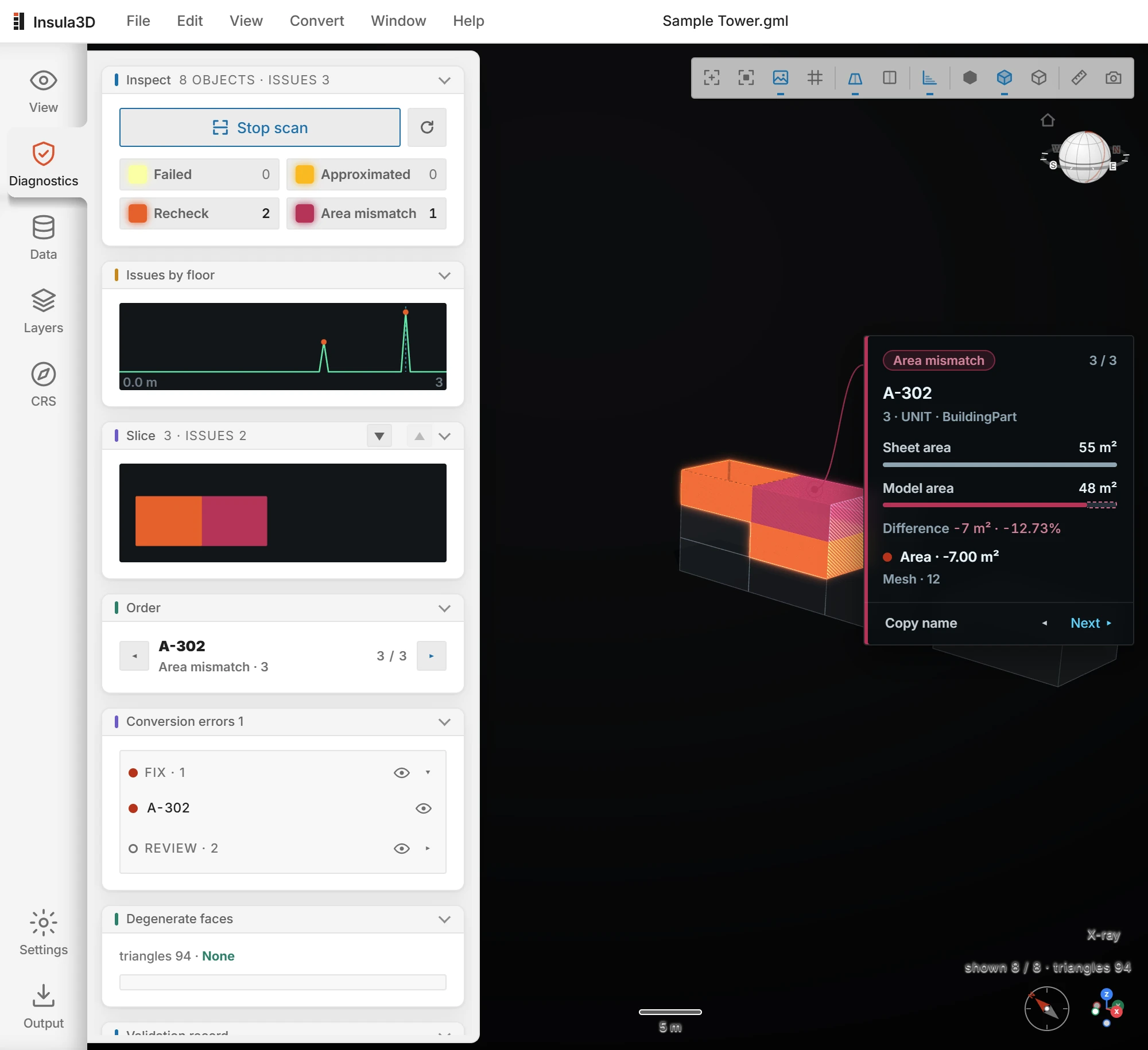
Look at the diagnosis
Click Diagnostics on the icon rail. The panel counts the objects by grade and lists the flagged ones under Fix and Review.
A file Insula3D wrote also brings back the grades from its conversion, such as an area that disagrees with the spreadsheet.
Find problems in the user guide
- 3
Go through the issues
Click Scan. The scene darkens and the flagged objects light up. Next moves to the next issue, and Copy name copies the object's name.
Find problems in the user guide
What gets checked
- Closed surfaces
- Whether the surfaces of each object close into a shell, and where they do not.
- Flipped surfaces
- Faces that point inward.
- Holes
- Inner rings that lie outside their face.
- Coordinates
- Files in latitude and longitude are measured in meters, not degrees.
Insula3D converts the model as it is and reports what it finds. It does not quietly fix or drop objects, and a check that did not run never shows as a pass.
Fix and check again
Insula3D reports what it finds and leaves the file as it is. Fix the objects at their source, then convert or open the file again.
Questions
Which versions can it open?
CityGML 1.0, 2.0 and 3.0, and CityJSON. Textures next to the file are shown too.
Can I try it before buying?
Yes. The 30-day trial unlocks everything.