Find problems
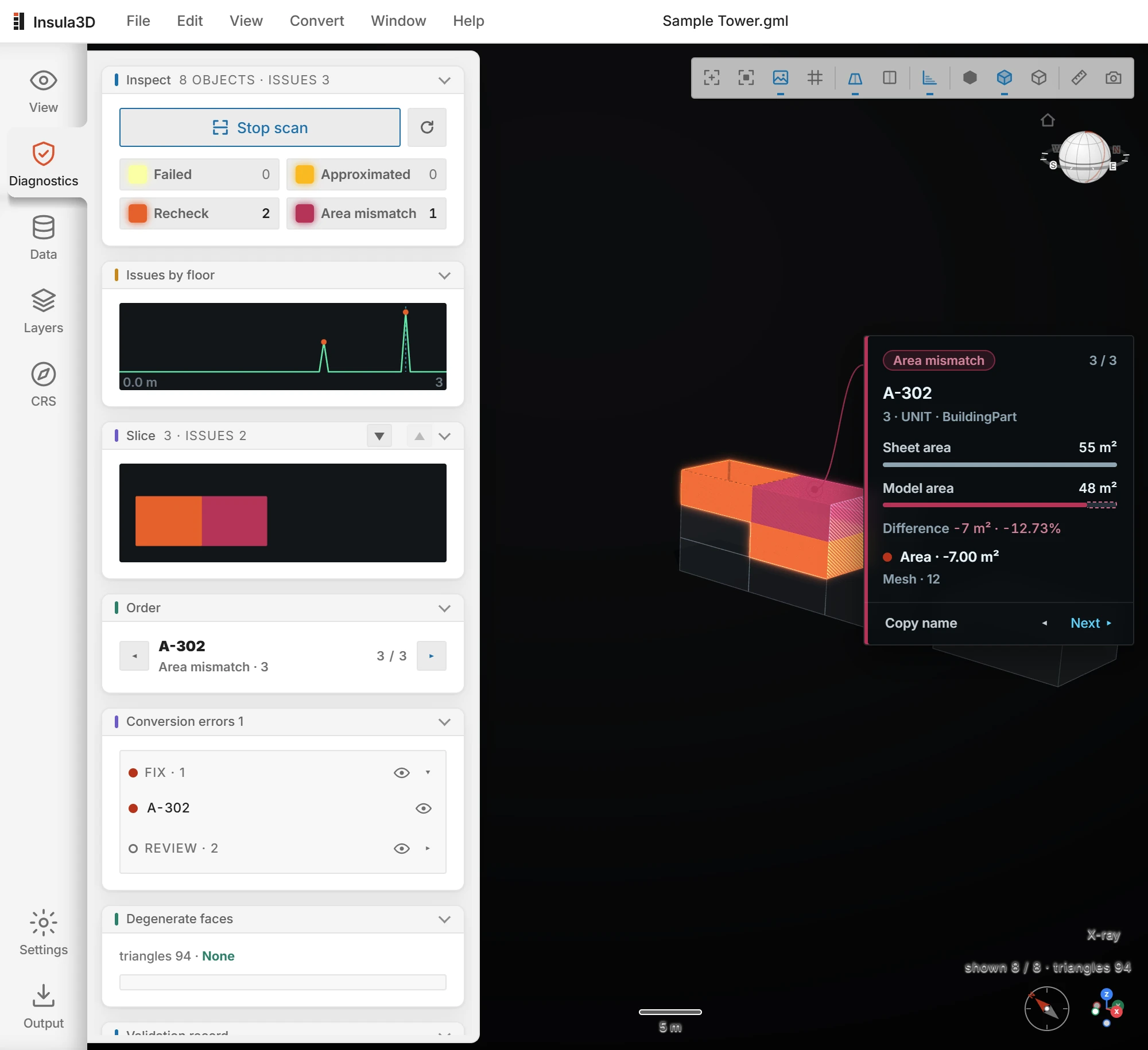
Open a converted file with View results, or with FileOpen…, and click Diagnostics on the icon rail. The panel counts the objects by grade.
| Grade | What it means |
|---|---|
| Failed | No geometry could be made for the object. |
| Approximated | The geometry is an approximation, for example walls without a cap, or separate parts written as surfaces. |
| Recheck | Reading the written file back found a flaw, such as open or flipped surfaces. |
| Area mismatch | The geometry is fine, but its area disagrees with the spreadsheet. |
| Area not compared | The spreadsheet had no area to compare. Not a flaw. |
| Passed | No problem found. |
 Open full size
To go through the issues:
- Click Scan. The scene darkens and the flagged objects light up in the color of their grade.
- Click Next on the card, or the arrows under Order, to move from one issue to the next.
- Click Copy name to copy the object's name, then find the object in 3ds Max or Blender.
- Click Stop scan to go back to the normal view.
Conversion errors lists the flagged objects in two groups. Fix, marked with a red dot, holds the objects that are wrong as written. Review, marked with a ring and folded at first, holds the ones worth a look, such as surfaces that do not close or an area that was not compared. Point at a row to see its grade and reason, and click it to go to the object. The same marks show in Structure and in the table of the Data panel; passed objects have no mark.
Issues by floor charts the issues per floor, and Slice steps through the model floor by floor.
Note:Insula3D converts the model as it is and reports what it finds. Fix the model or the spreadsheet, then convert again to see the new result.
Parent topic: Checking results