Step by step
- 1
Add the Insula3D button to 3ds Max
Install Insula3D with the option Insula3D button in 3ds Max. Then, once, choose CustomizeCustomize User Interface, set Category to Insula3D on the Toolbars tab and drag the action onto a toolbar.
Add the 3ds Max button in the user guide
- 2
Send the selection
Select the objects you want to convert and click Insula3D. Insula3D opens with that selection, its layers and its materials.
Send a selection from 3ds Max in the user guide
- 3
Attach the spreadsheet
In the Data panel, choose your
.xlsxfile and click Build to map its columns. One column joins the rows to the object names; others becomegml:id,gml:name, the parent building, the storey, the address or plain attributes.No spreadsheet yet? Template writes one with every object name filled in. Without a spreadsheet, Insula3D converts the geometry alone.
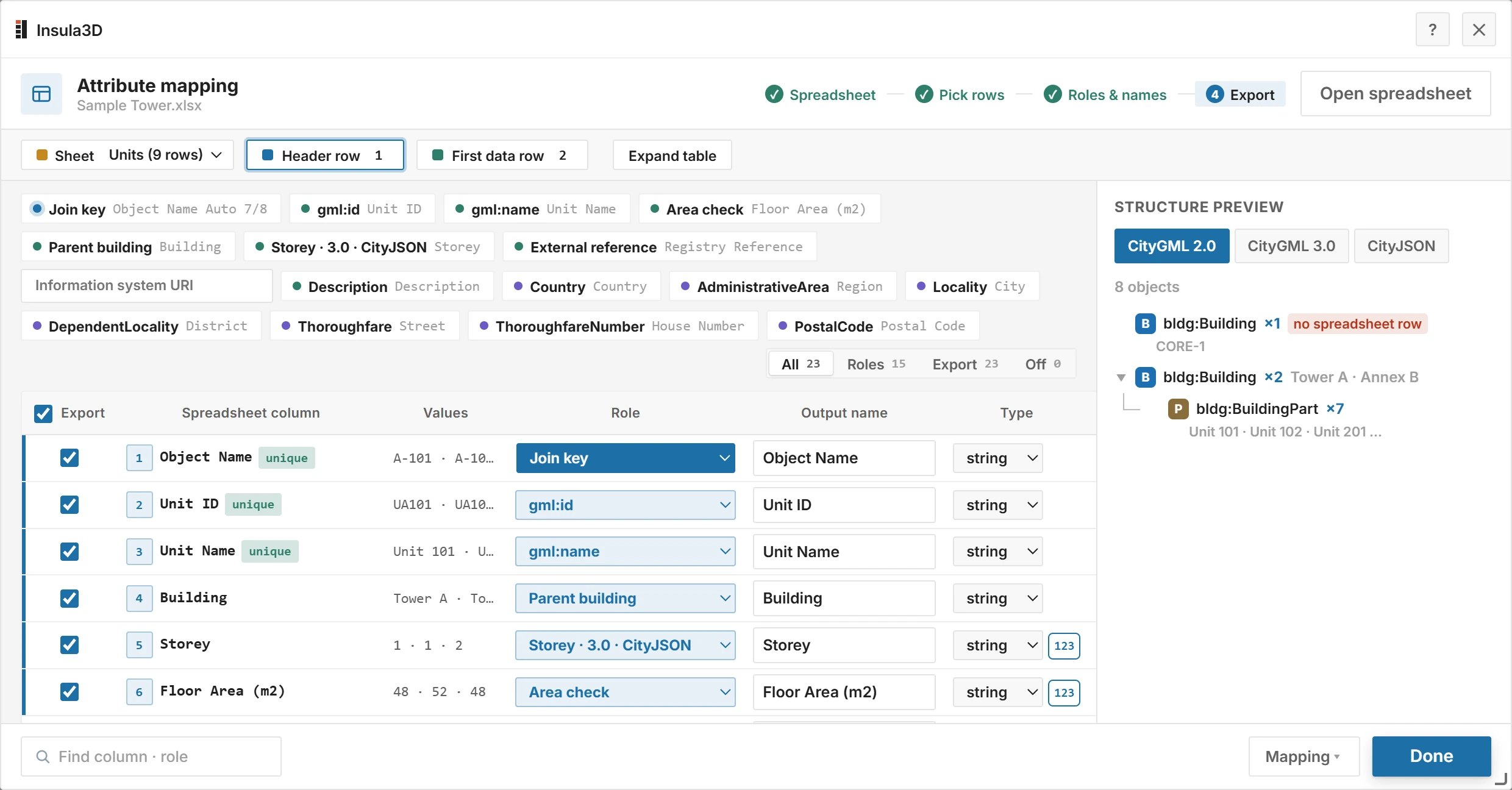
Each column gets a role. Structure preview shows the CityGML tree before you convert. Map the spreadsheet columns in the user guide
- 4
Set up each layer
In the Layers panel, choose for each layer what its objects become: Surfaces or Solid, the LOD, and the CityGML class and type, such as Building or BuildingPart. Turn on Area check vs sheet where the spreadsheet holds areas.
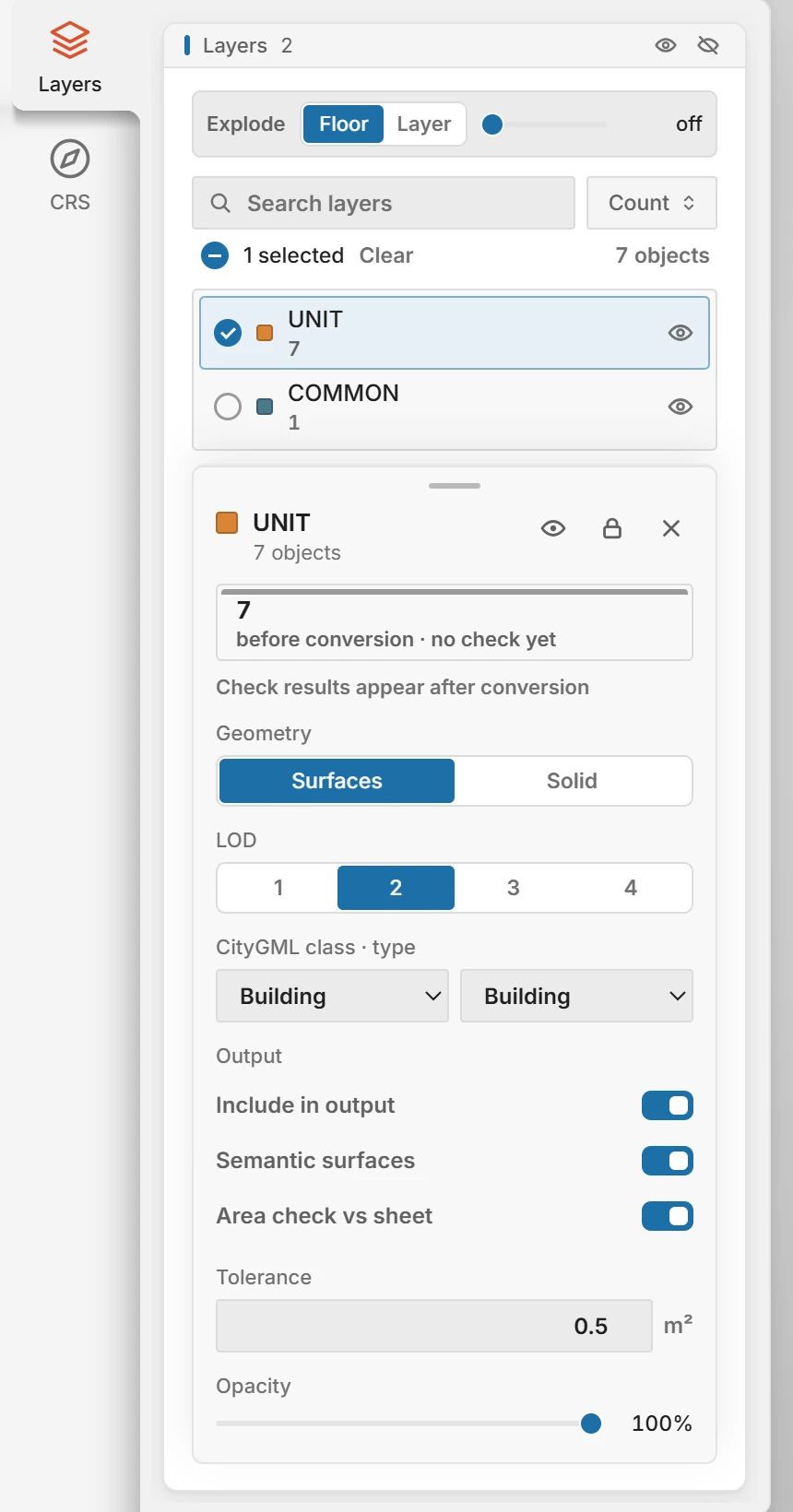
One layer's settings: geometry, LOD, CityGML class and the area check. Set up layers in the user guide
- 5
Set the coordinate system
In the CRS panel, choose the coordinate system your coordinates are in. A model built near the origin can be placed on the map instead, by place name, pasted coordinates or dragging.
Set the coordinate system in the user guide
- 6
Convert
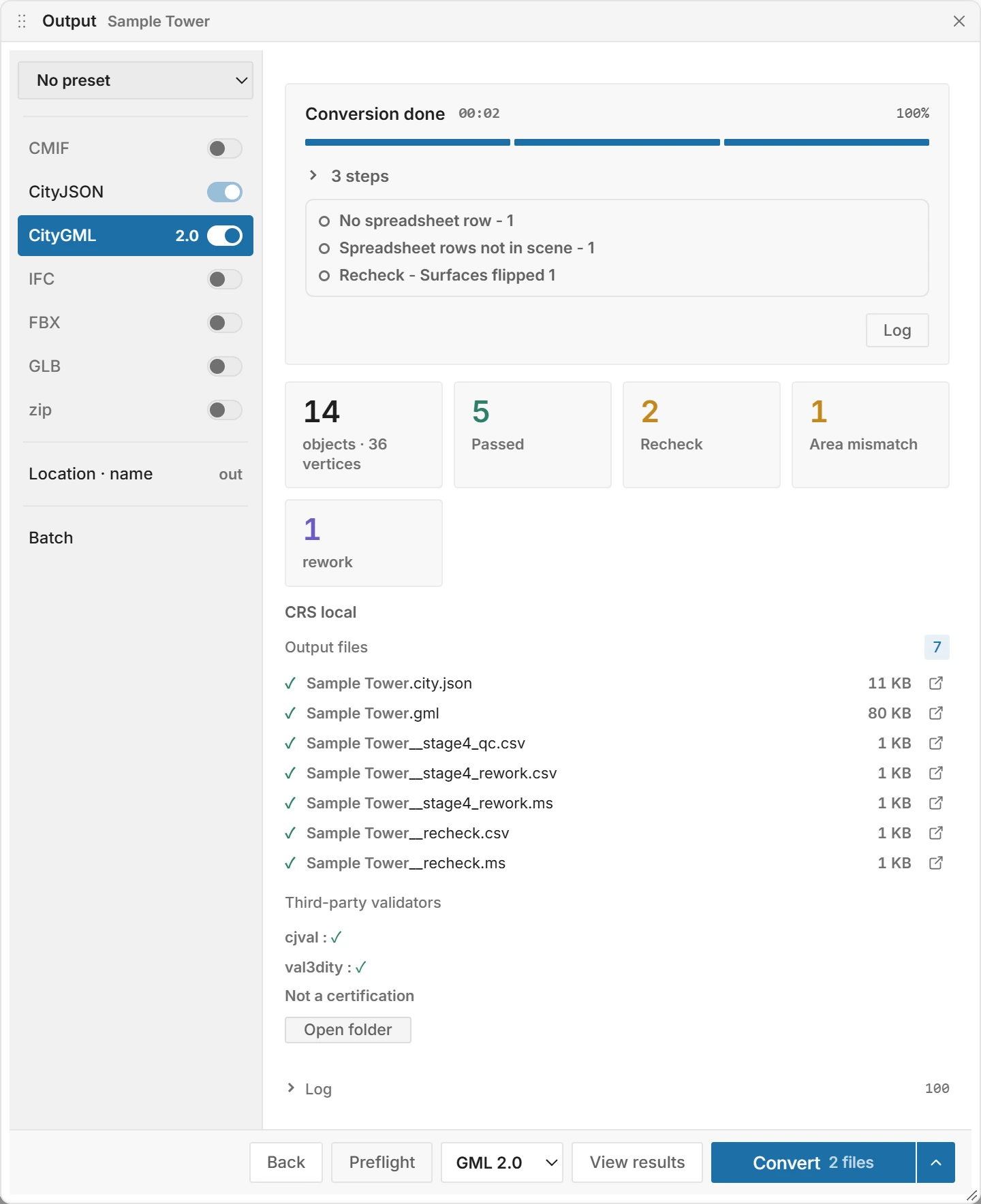
In the Output window, turn on CityGML and choose 2.0, 3.0 or Both. CityJSON is always written, and IFC, GLB and FBX are there when you need them. Click Preflight to check the inputs, then Convert.
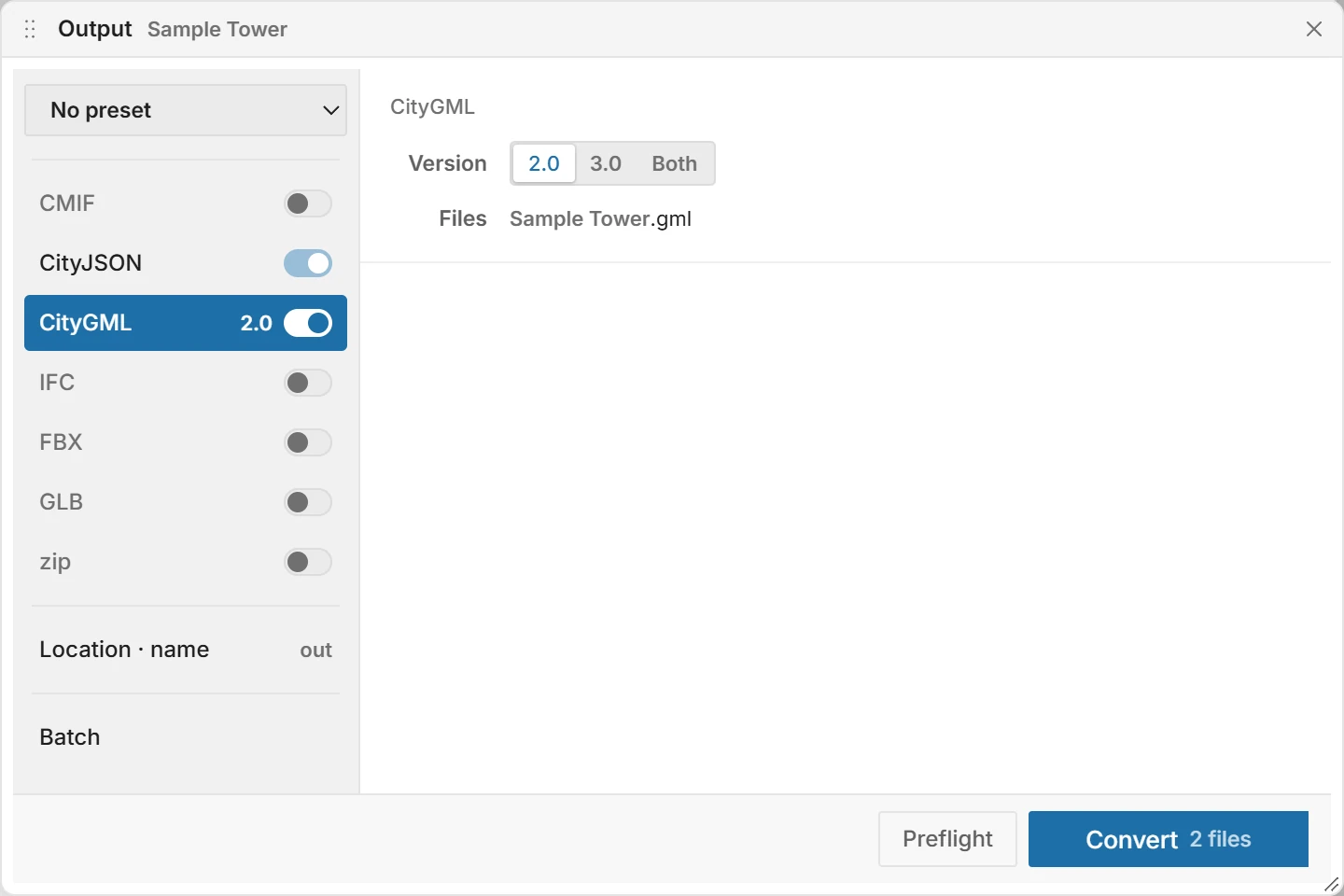
CityGML 2.0 turned on. CityJSON is always written. Preflight and convert in the user guide
What becomes what
| In your 3ds Max scene | In the CityGML file |
|---|---|
| Selected objects | One city object each, such as a Building or BuildingPart |
| Layers | The feature type, LOD and geometry you set for that layer |
| Object names | The join key to a row of your spreadsheet |
| Spreadsheet columns | gml:id, gml:name, address, building, storey and attributes, as you map them |
| Materials, textures and colors | Appearance: textures and material colors |
| Coordinates | Kept as modeled, in the coordinate system you choose, or placed on the map |
What gets checked
- Schema
- CityGML 2.0 and 3.0 against the official XSD schemas, during the conversion.
- Reading back
- Each written file is read again: surfaces that do not close, flipped surfaces, holes outside their face.
- Spreadsheet join
- Objects with no spreadsheet row, rows with no object, duplicate IDs and values that are not numbers or dates.
- Area
- Where you turn it on, the area of each object against the spreadsheet, with a tolerance in m².
- Validators
- After the run, val3dity and cjval check the CityJSON in the background.
Insula3D converts the model as it is and reports what it finds. It does not quietly fix or drop objects, and a check that did not run never shows as a pass.
Fix and convert again
Next to the files, Insula3D writes __stage4_rework.ms and __recheck.ms. In 3ds Max, choose ScriptingRun Script… and pick one: the flagged objects are selected and the viewport zooms to them.
Fix them, click the Insula3D button again and convert. The new result shows what is left.
Questions
Can 3ds Max save CityGML by itself?
No. 3ds Max has no CityGML export. Insula3D takes the selection from 3ds Max and writes CityGML 2.0 and 3.0 and CityJSON.
Do I have to rebuild the model?
No. Insula3D converts the model as it is, then reports what came out wrong. You fix those objects in 3ds Max and convert again.
Do I need an internet connection?
No. Converting, checking and the diagnosis run on your PC. Only the basemap, place search and context buildings use the network.
Will my textures and colors carry over?
Yes, as CityGML and CityJSON appearance, where a layer keeps its surfaces. A layer written as Solid is rebuilt from its footprint, and Insula3D counts the textures it could not carry.
Can I try it before buying?
Yes. The 30-day trial unlocks everything, and files made with it are marked as trial output.