Map the spreadsheet columns
The Attribute mapping window reads the spreadsheet and lets you say what each column is: which one holds the object names, which ones fill CityGML fields and which ones go out as plain attributes. It suggests the join key from the object names in the scene and leaves every other choice to you.
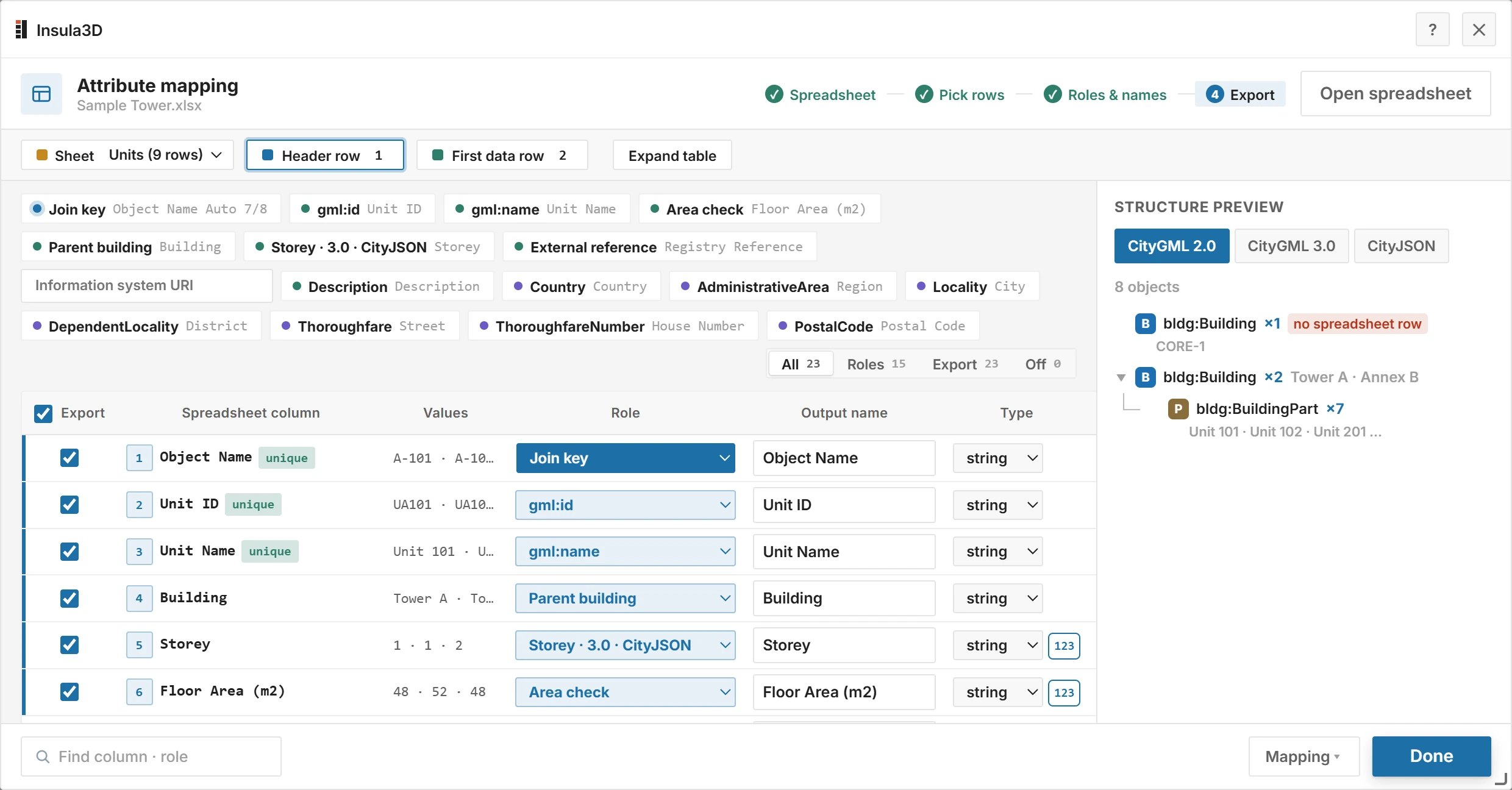 Open full size
To map the columns:
- In the Data panel, under Mapping, click Build. The Attribute mapping window opens on the spreadsheet.
- If the file has several sheets, choose one under Sheet.
- Click Header row, then click the row that holds the column names in the sheet. The row below it becomes the First data row, skipping empty rows and rows that only number the columns. Click a later row if the data starts somewhere else.
- Set Role to Join key for the column that holds the object names. The mapping cannot be finished without it.
- Give the other columns a Role where one fits, see Column roles. A column without a role goes out as a plain attribute.
- Check Output name, the attribute name written to the files, and clear Export for the columns you want to leave out.
- Choose Type for columns that hold numbers. Every column starts as string, and a column with numbers only shows 123 next to it: click it to set int or double.
- Check Structure preview on the right. It builds the CityGML 2.0, CityGML 3.0 and CityJSON trees with the same rules as the conversion.
- Click Done. Insula3D saves the mapping as a
.jsonfile named after the spreadsheet and sets it in the Mapping field.
Note:While something blocks the mapping, Done is off and the bottom bar says what, for example No join key, Duplicate output name or No output name.
The mapping file goes into the output folder, or next to the spreadsheet if no output folder is set yet. The Mapping menu next to Done can also download it or copy it to the clipboard.
Tip:Insula3D remembers the header row and the roles for each sheet. Clear saved forgets them for the sheet that is open.
Parent topic: Attributes