Preflight and convert
To convert:
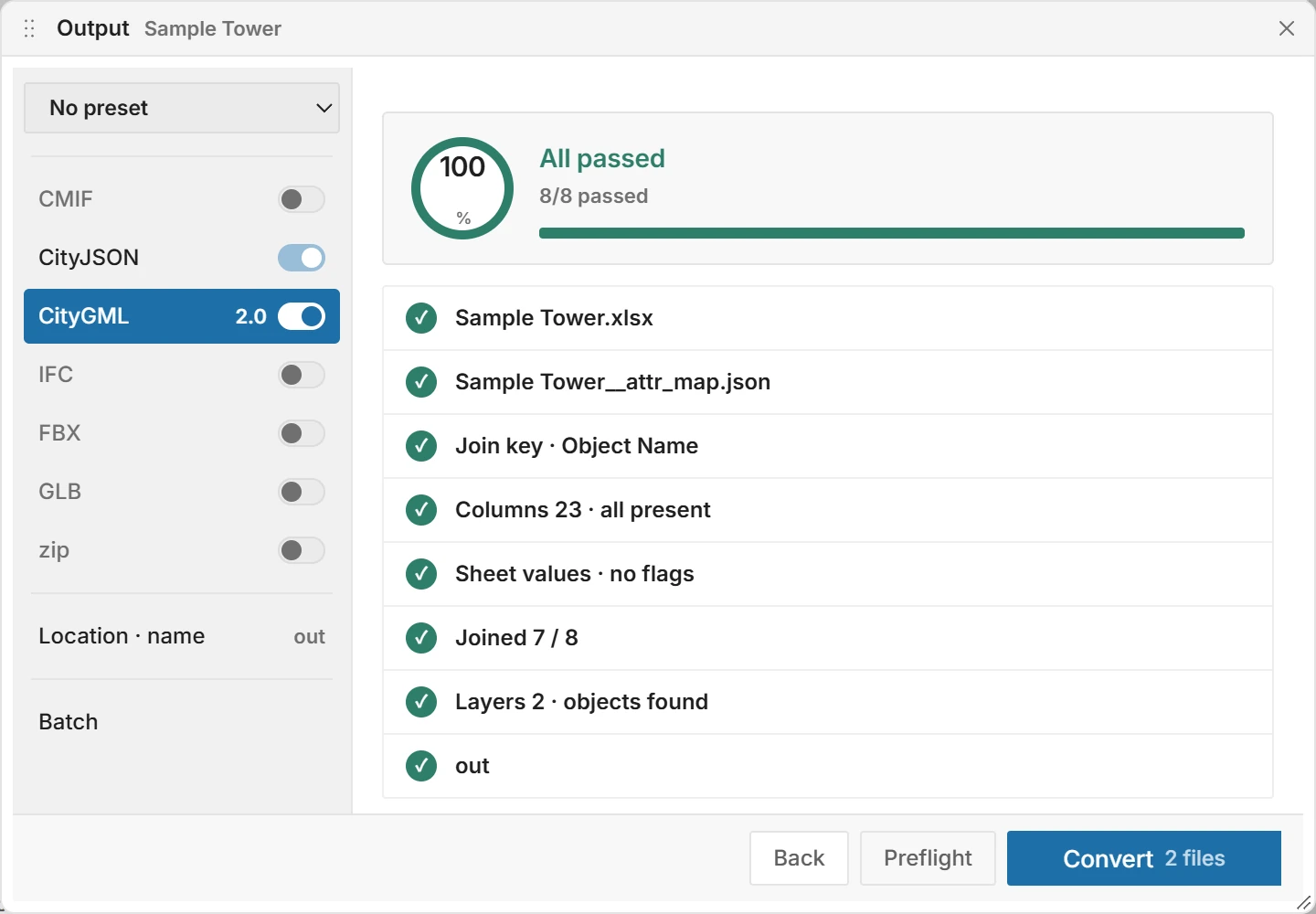
- In the Output window, click Preflight. Insula3D checks the spreadsheet, the mapping, the output folder and file name, the join key, the columns, the values in the sheet, the join, the layers and the coordinate system, and lists each check.
- Fix what failed, or go on if everything passed. Preflight messages explains each message.
- Click Convert, or press Ctrl+Enter. The button shows how many files will be written.
- When the run is done, choose a file in the list next to View results, then click View results to open it with its diagnosis.
 Open full size
 Open full size
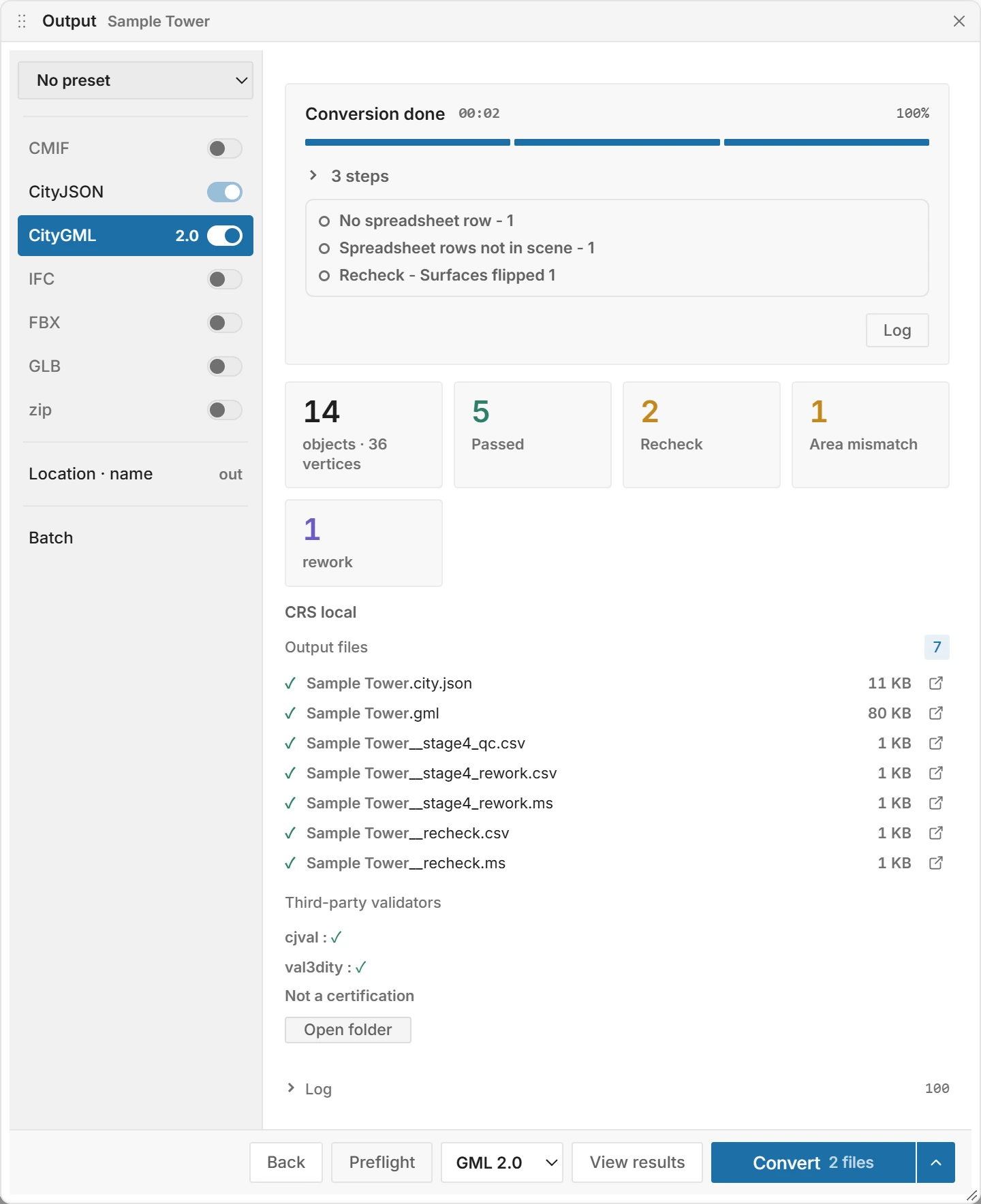
When the run ends, its steps fold into one line that counts them. Click the line to see them again. The result shows how many objects were written, how many got each grade, the coordinate system and the files, with the reports and 3ds Max scripts written next to them. The box above the tiles lists what to look at, three lines at first with a button for the rest, and Log shows the full record. Open folder opens the output folder.
Then third-party validators check the files in the background, and the result lists each one with ✓ or the number of problems it found. They are other organizations' tools, and a pass is not a certification. Turn them off in Settings under Third-party validators.
Next to the files, Insula3D writes its reports: __stage4_qc.csv with a grade for every object, __recheck.csv with the flaws found by reading the files back, and the 3ds Max scripts __stage4_rework.ms and __recheck.ms, which select the flagged objects in 3ds Max. See Select flagged objects in 3ds Max.
Parent topic: Converting