Set the coordinate system
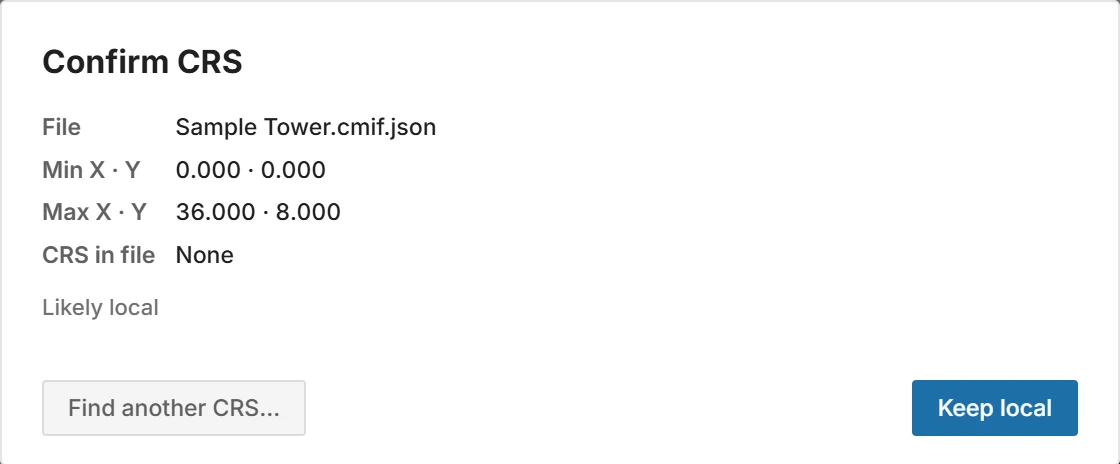
Every time a file opens, Insula3D shows the Confirm CRS box: the extent of the coordinates, the CRS stated in the file, and the coordinate systems whose area of use fits the coordinates.
 Open full size
- Click a suggested CRS, then Apply. The list puts the CRS stated in the file first, and shows how each one fits and its published accuracy.
- Click Keep local for a model in local coordinates. You can still place it on the map later.
- Click Find another CRS… to search by EPSG code or name.
Note:UTM coordinates look alike from zone to zone, so the coordinates alone cannot tell the zone. When the box says Cannot tell from coordinates · check UTM zone, check the zone with whoever made the model.
To change the CRS later, click CRS on the icon rail and choose it from the list, or choose ConvertFind CRS…. The CRS you choose is written into the output files.
Parent topic: Placing on the map