Set up layers
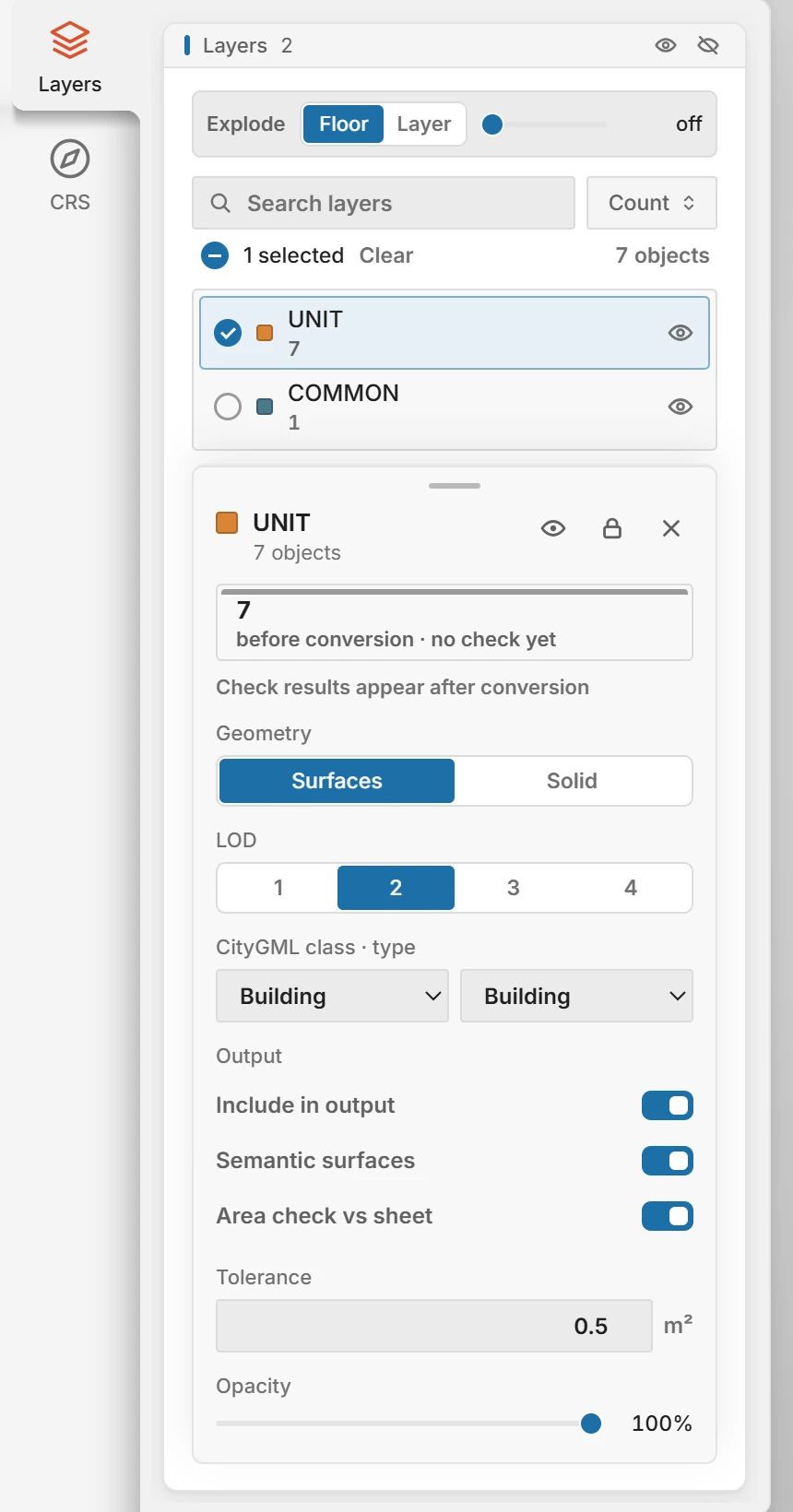
Every layer of the model has its own output settings. Click Layers on the icon rail. The settings box below the list stays dimmed until you select a layer: click one to edit its settings, or hold Ctrl or Shift to select several and change them together.
 Open full size
| Setting | What it does |
|---|---|
| Geometry | Surfaces writes the faces of the model as they are. Solid extrudes the footprint to the top of the object, with a flat roof. |
| LOD | The level of detail written for the layer, 1 to 4. LOD 4 exists only in CityGML 2.0. |
| CityGML class · type | What the objects become: Building, Transportation, Relief or Other, then the type, such as BuildingPart, Road or CityFurniture. |
| Include in output | Turn off to leave the layer out of the files. |
| Semantic surfaces | Marks each face as wall, roof or ground surface. Available for Building, BuildingPart, Bridge and Tunnel. |
| Area check vs sheet | Compares the area in the spreadsheet with the area of the geometry. Off by default. Tolerance is the difference in m² that still passes, 0.5 unless you change it. |
| Opacity | How solid the layer looks in the 3D view. Not written to the files. |
The eye button shows or hides a layer, and the lock stops its objects from being picked in the 3D view. Explode pulls floors or layers apart in the 3D view to show what is inside.
After a conversion, the layer settings also count the objects: OK, fix and review. Click a count to show only those objects in 3D, copy their names with Copy names, or save a 3ds Max script that selects them with Select in Max.
Tip:With several layers selected, a change applies to all of them, and a notice offers Undo.
Parent topic: Layers and structure