Edit values and save them
Found a wrong value? Correct it in the table and save it to the spreadsheet, without opening the file in another program.
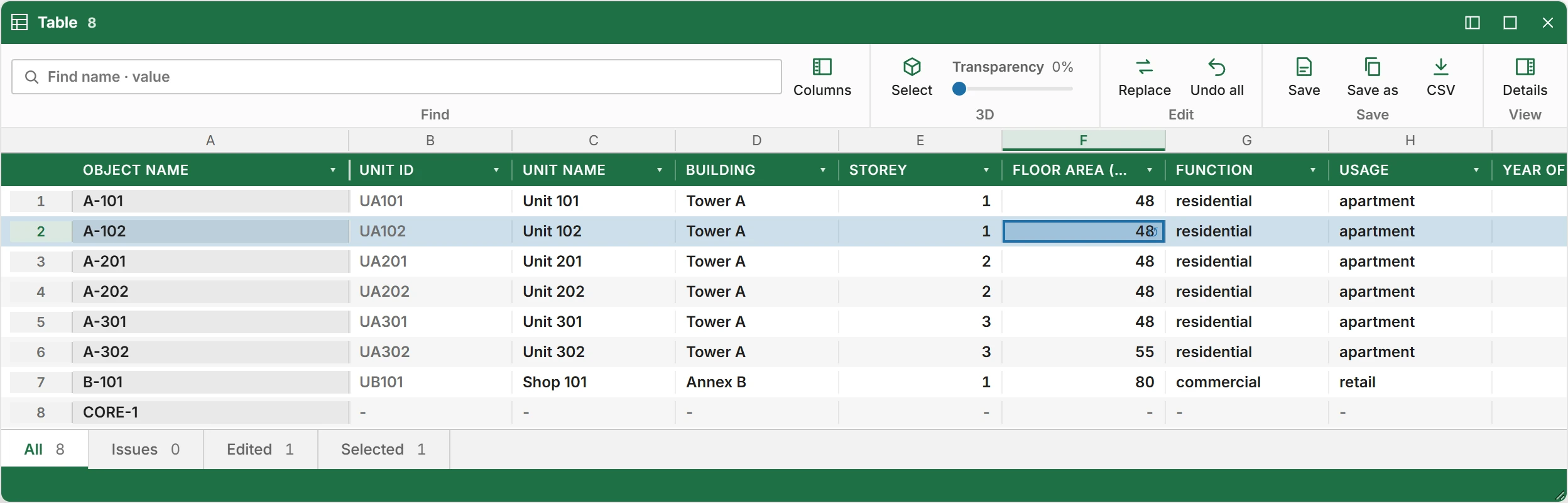 Open full size
To edit values:
- In the Data panel, click Expand above the table. The table fills the panel. To give it a window of its own, click Float on its title bar.
- Double-click a cell, or select it and start typing. In the narrow table of the panel, one click opens the cell.
- Type the new value and press Enter. Tab moves to the next column, and Esc cancels.
- Click Save to write the changes to the spreadsheet, or Save as to write them to a copy.

Save first copies the spreadsheet next to itself, with __bak_ and the date and time added to the name, so the earlier version is always there. Save as leaves the original as it was.
- The Edited tab shows what you changed. To undo one cell, click the ↺ mark in it. Undo all clears every edit.
- The join key and gml:id columns cannot be edited, because changing them would lose which object a row belongs to.
- A value typed for an object without a row adds a row to the spreadsheet.
- Columns are never created here. Add a column in the spreadsheet, then map it.
- When the last conversion flagged objects, the table window adds an Issue column with the mark, grade and reason of each, so the rows to fix are easy to find.
Warning:Save cannot write while the spreadsheet is open in another program: close it there and save again. Insula3D cannot keep charts and pictures in a spreadsheet it saves; if there are any, the status line says how many were removed, and the backup copy still has them.
Note:Edits change the values only. Grades, the area check and the hierarchy follow when you convert again. If you open another model or close Insula3D with unsaved edits, Insula3D asks whether to Save or Discard them.
Parent topic: Attributes