Attach a spreadsheet
Attributes come from a spreadsheet (.xlsx) with one row per object. One column holds the object names exactly as they are in 3ds Max or Blender, and Insula3D matches the rows to the objects by that column.
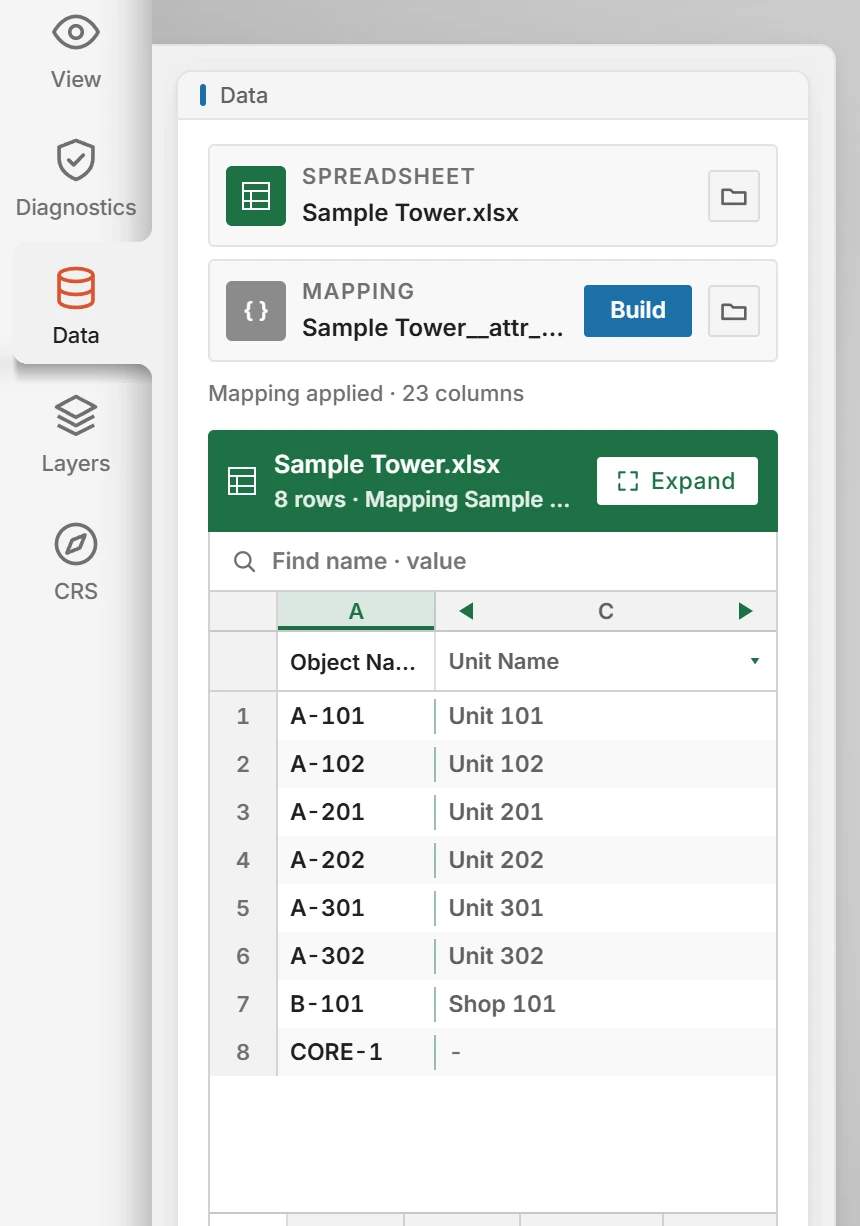 Open full size
To attach a spreadsheet:
- Click Data on the icon rail.
- Under Spreadsheet, click Browse (the folder button) and choose the
.xlsxfile. You can also drop the file onto the panel. - Under Mapping, click Build to tell Insula3D what each column is. See Map the spreadsheet columns.
In the table, the first column is the object name. Use the arrows above the second column to step through the spreadsheet columns, or click its header to pick one. Expand opens the full table, see Edit values and save them.
To start from a template:
- With no spreadsheet attached, click Template in the Spreadsheet field.
- Choose where to save it. Insula3D suggests the scene name followed by
_attributes.xlsx. - Fill in the columns your delivery needs. The template has 23 columns, and Object Name is already filled in with the name of every object in the scene.
Note:Insula3D makes a mapping for the template at the same time and sets it in the Mapping field. Template is offered only while the spreadsheet field is empty, before the conversion.
Parent topic: Attributes